Monitor Packagers
The Portal shows the live state of every connected Packager, managed or unmanaged. Packagers send a heartbeat every two seconds by default and report task state as it changes, so the pages update on their own.
Overview
Overview counts the Packagers that are online and offline, and the sources, sinks, transcoders and compositors that are running or not running. Recent Issues lists tasks that need attention. Start here to see whether anything is wrong.
Packagers list
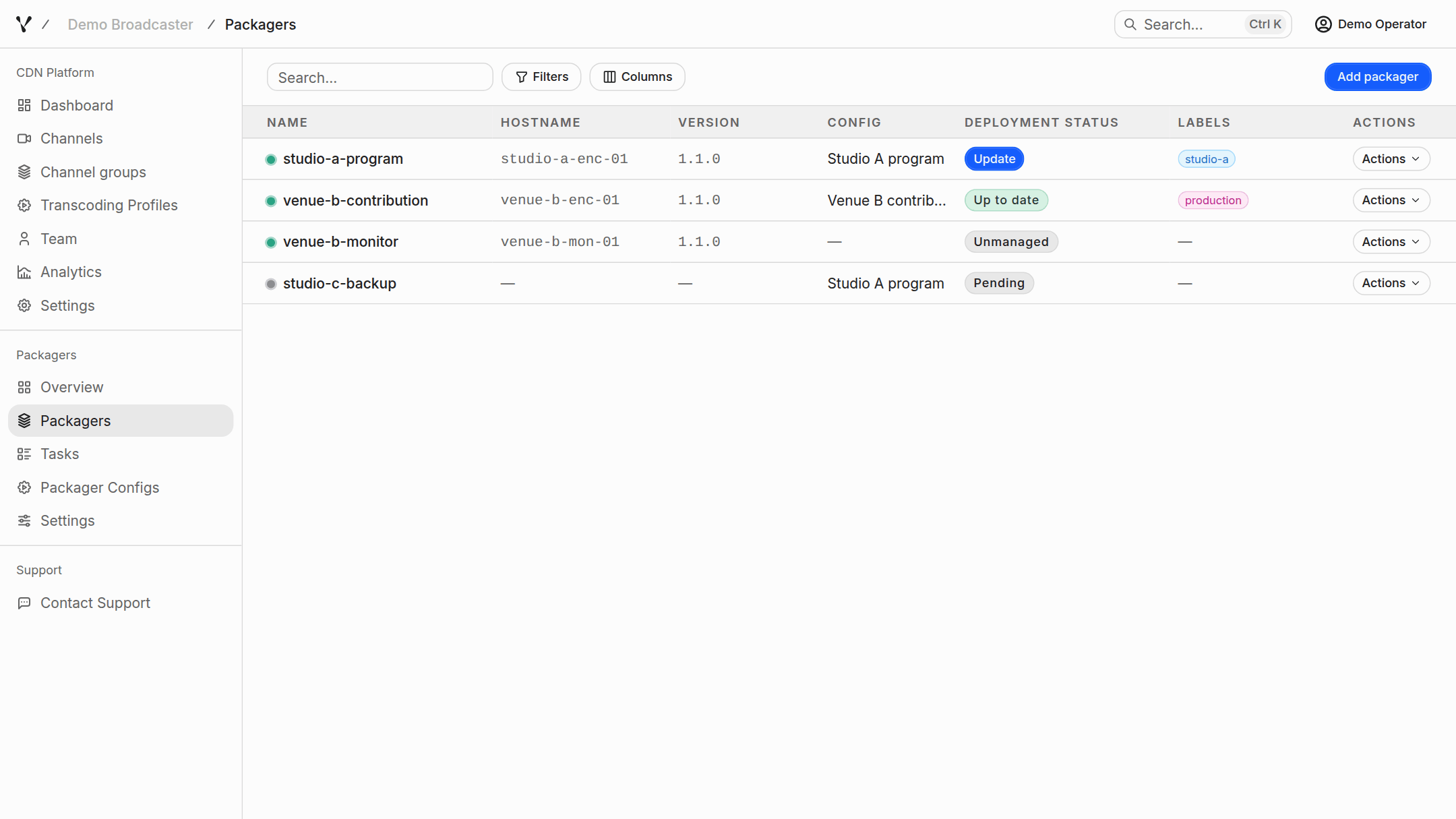
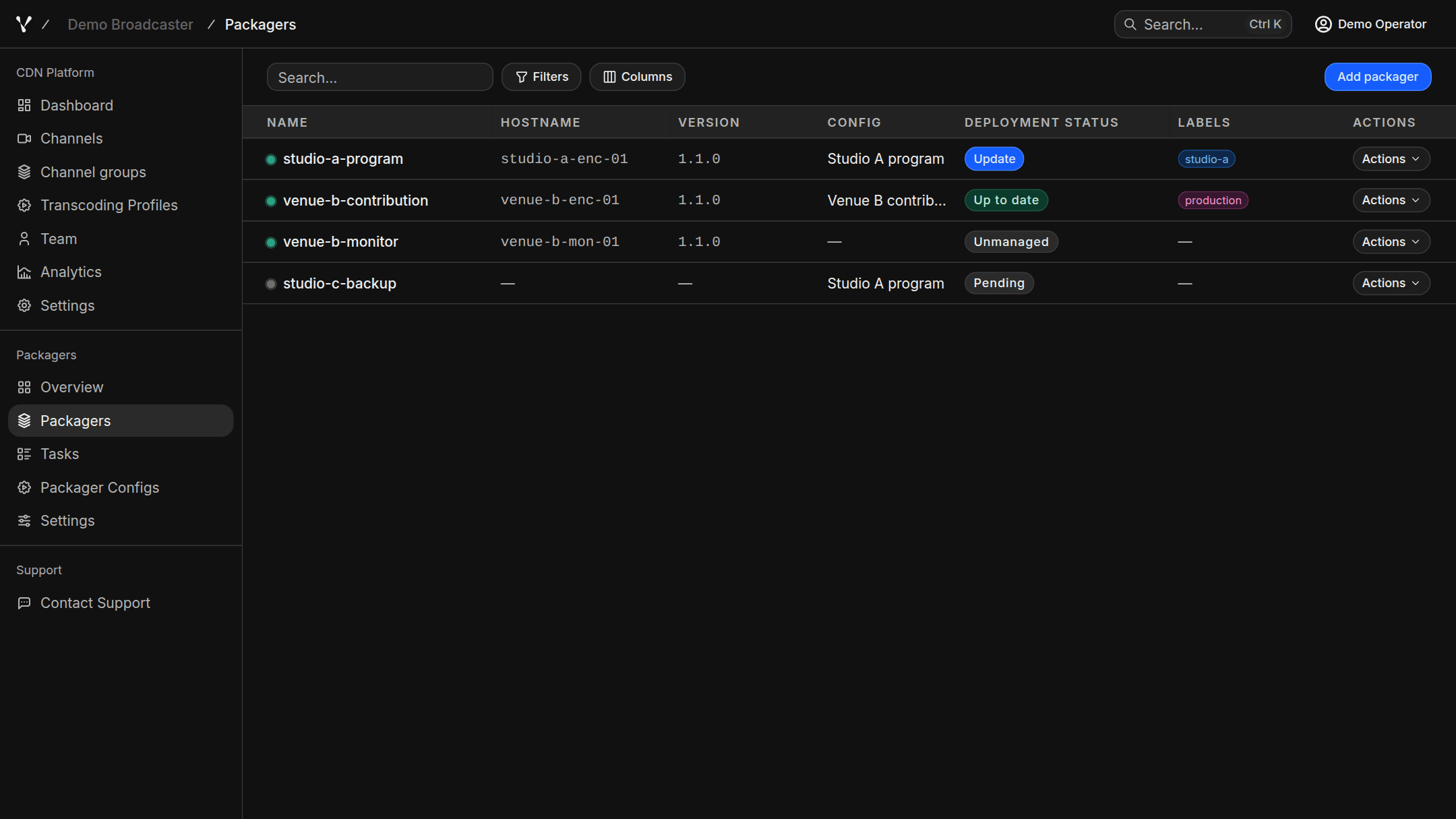
Packagers lists every Packager with its name, hostname, version, config, deployment status and labels. The light before the name is green when the Packager is online.
| Deployment status | Meaning |
|---|---|
| Pending | The Packager was added, but nothing has connected with its token yet. |
| Up to date | An online managed Packager set to the latest revision of its config. |
| Update | An online managed Packager set to an older revision. Select it to update. See Roll out a new revision. |
| Outdated | The same as Update, shown to members whose role cannot update Packagers. |
| Offline | A managed Packager that has connected before but is not connected now. |
| Unmanaged | A Packager that registered with a connect key and runs its own configuration. |
The status shows the revision the Packager is set to, and changes to Up to date when you apply an update. The Packager's events confirm the result: Config applied when it runs the revision, or Config rejected when it kept its current tasks.
Search matches names, hostnames, versions, configs, labels and the stream keys of sinks. Filters narrows the list by name, hostname, label or status.
Labels
Labels group Packagers, for example by venue or by environment. Create them under Settings › Labels in the Packagers group, add them when you add a Packager, or change them with Edit labels on a Packager's page. Then filter the list by label.
A Packager's page
Select a Packager to see its labels, hostname and version, the config and revision it runs, and every task with its state. The Revision line reads, for example, 5 (latest 6) when there is a newer revision to roll out. Full Config opens the config.
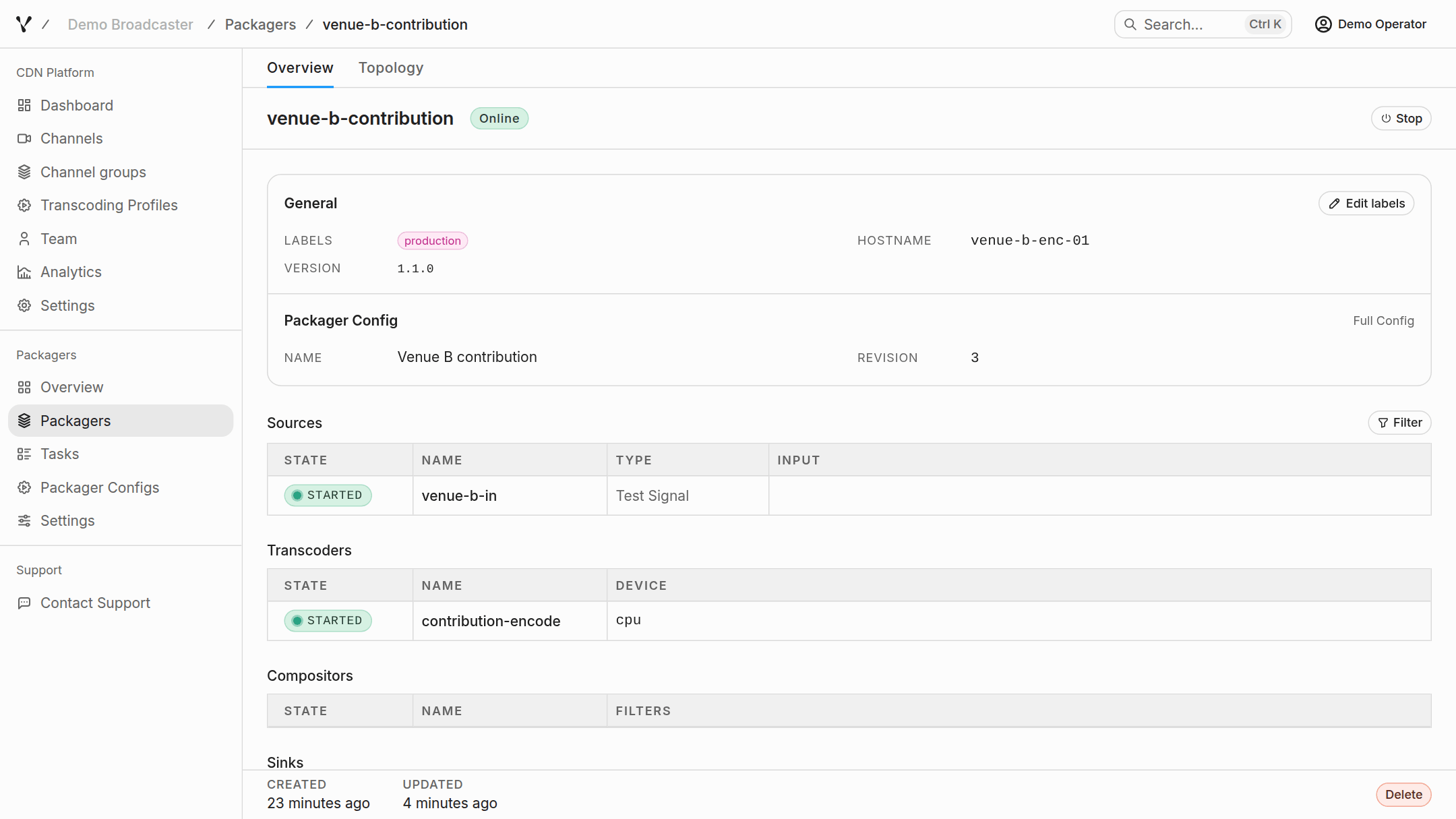
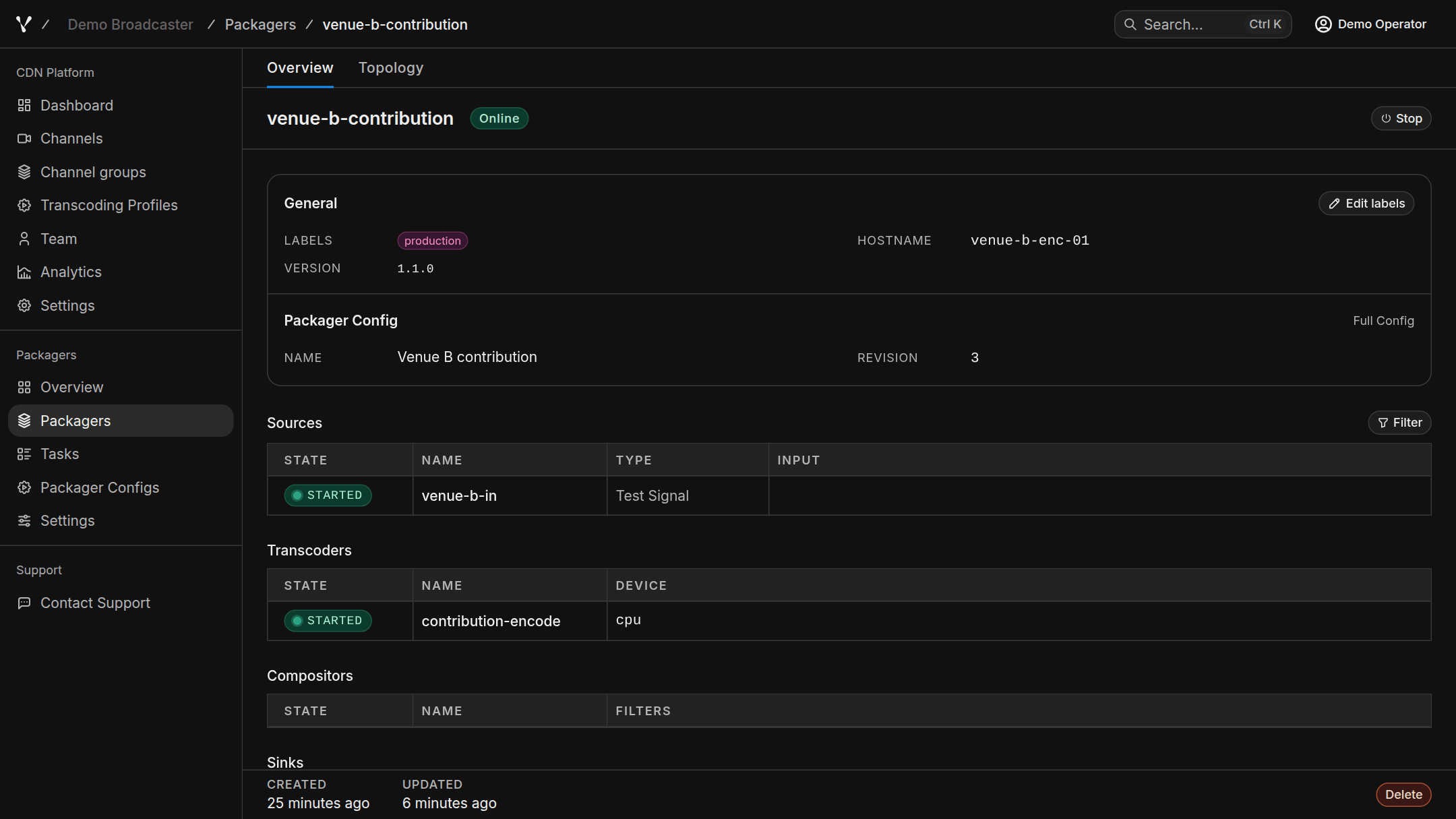
Task states follow the Packager's own task lifecycle. STARTED means the task runs. A task that stays in STARTING keeps retrying, for example because its input is not there yet or an output cannot be reached; check the Packager's log for the reason. Sinks also show their output URL. Select a task to see its configuration and tracks.
Events
Events logs what happened to the Packager, newest first. Managed and unmanaged Packagers both have events; only managed ones get Config applied and Config rejected.
| Event | What it means |
|---|---|
| Session started | The Packager registered for the first time. |
| Reconnected | The Packager registered again, after a restart or a dropped connection. |
| Session stopped | The Packager shut down cleanly, for example with docker stop. After an unclean stop or a network drop, the Portal marks the Packager Offline within about 40 seconds, and its next start shows Reconnected. |
| Config applied | The Packager validated and applied a revision, for example Revision 4 applied. |
| Config rejected | The Packager rejected a revision and kept its current tasks. Expand the row to see each failing task and the error. |
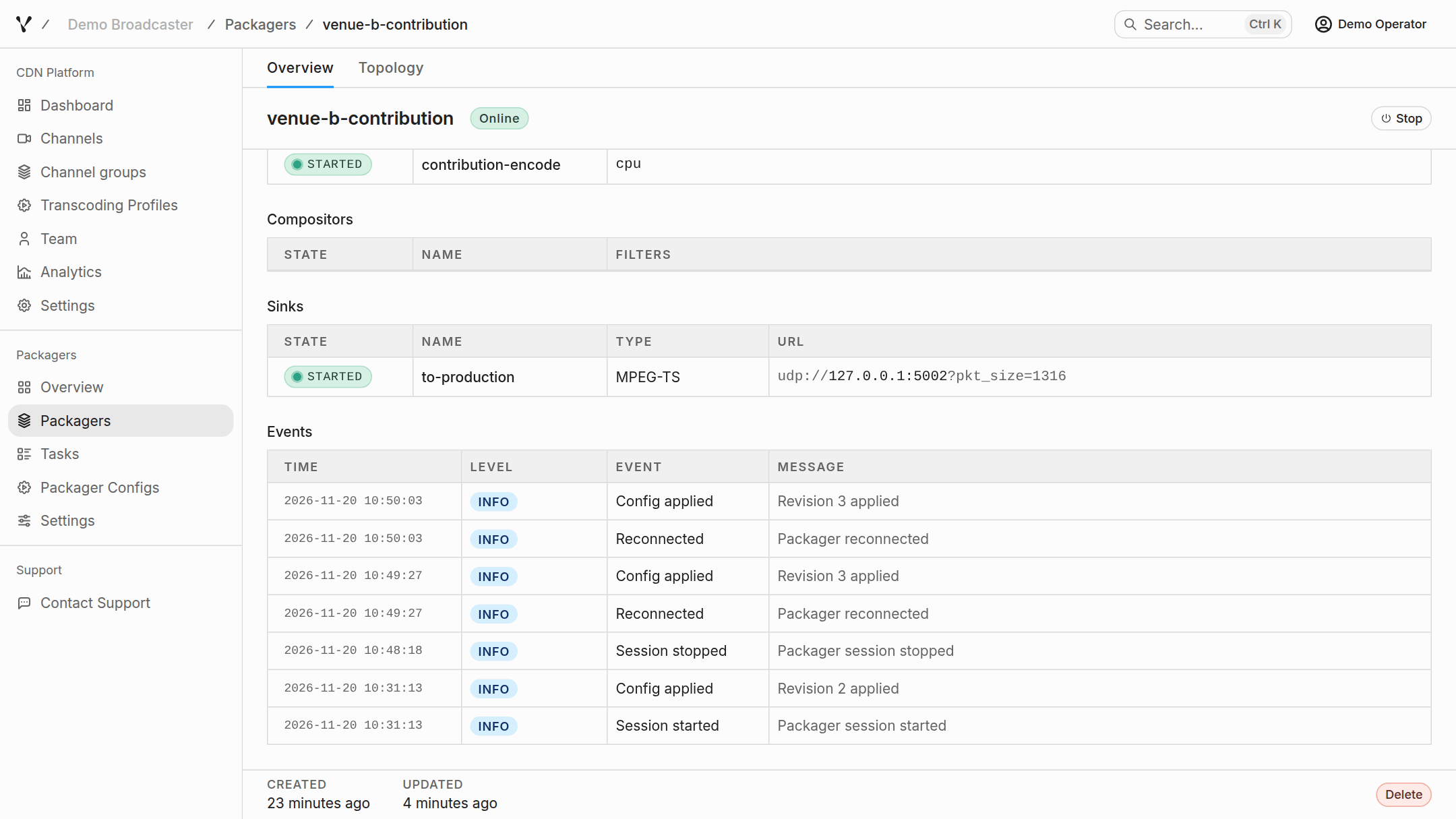
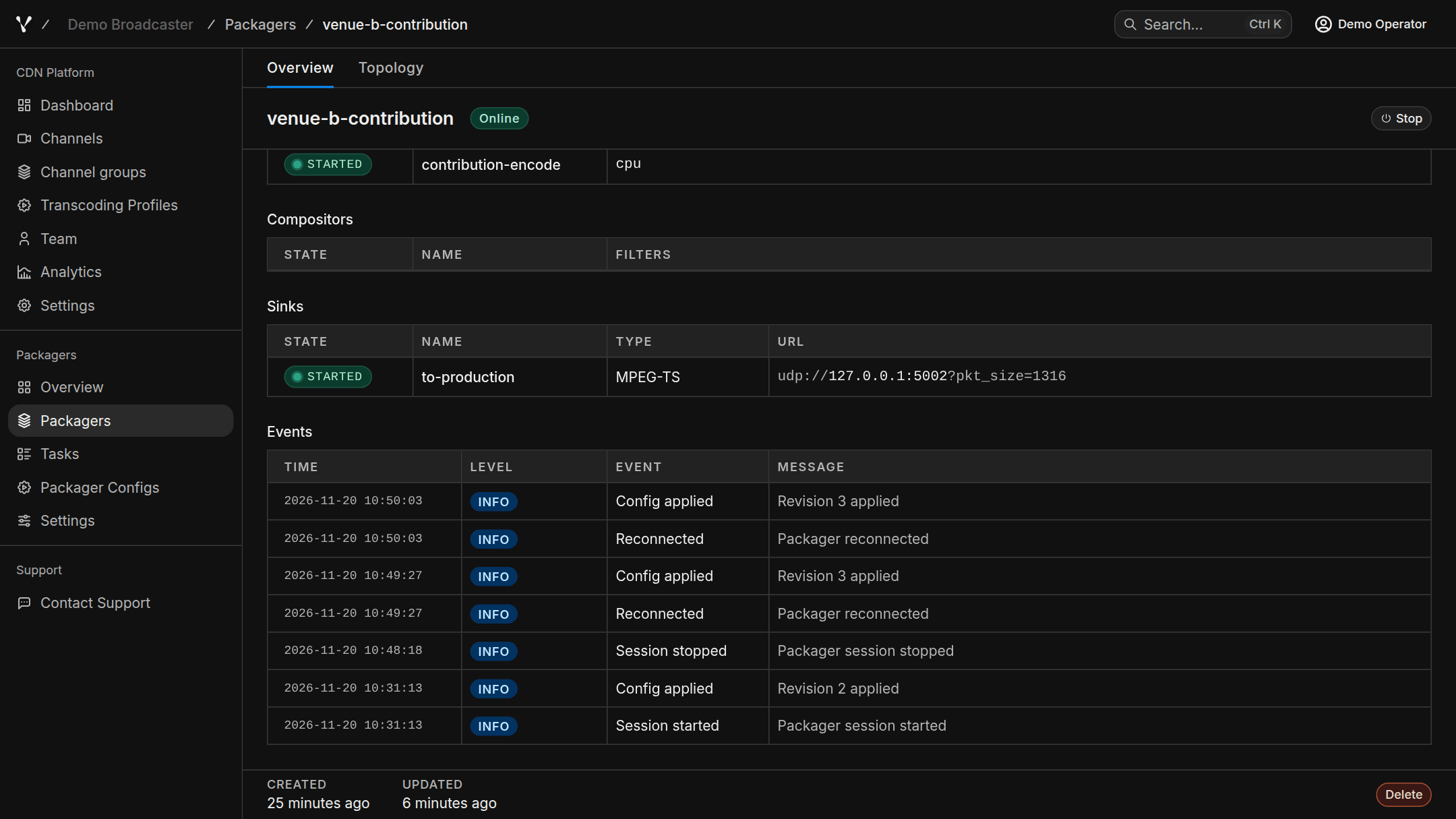
Read from the bottom: the Packager started on revision 2 and was stopped with docker stop. When it started again, it received revision 3 without an update; see the caution in Save a revision. The second Reconnected follows a restart without a clean stop.
Topology
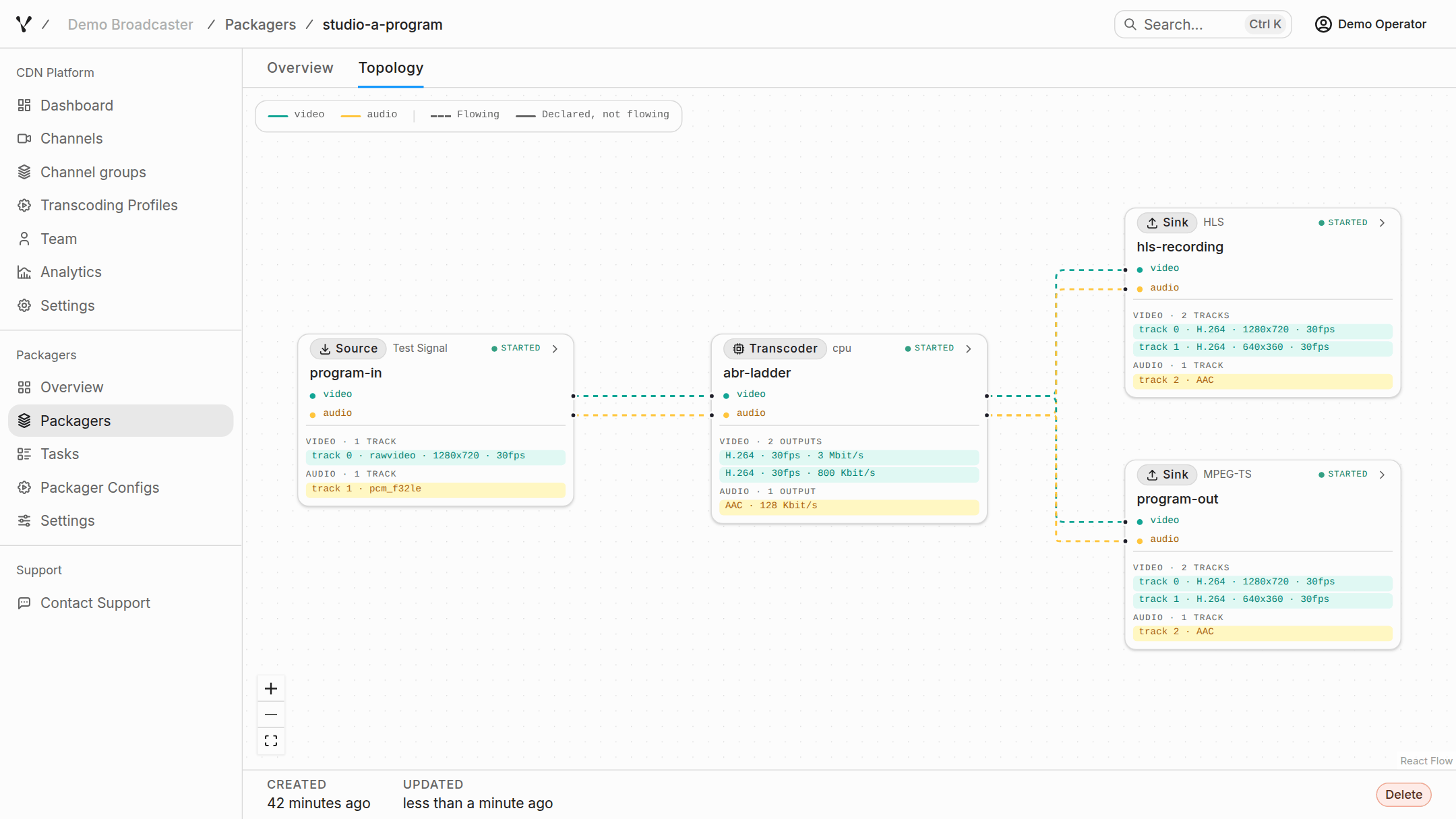
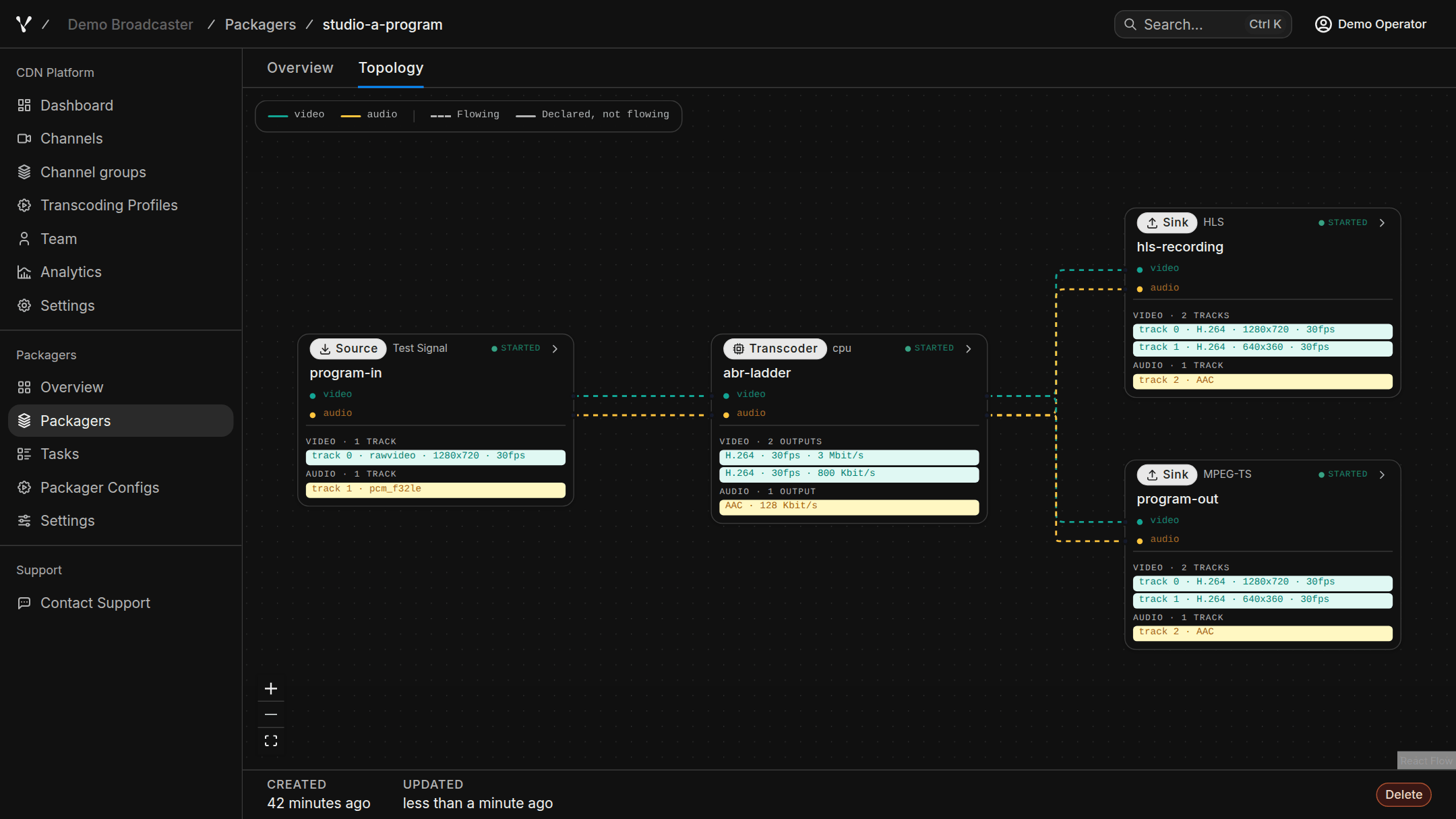
Topology draws the running pipeline: which sources feed which transcoders and sinks, the tracks each task carries with codec, size and frame rate, and the state of each task. Dashed lines show media that is flowing; solid lines show connections that are configured but carry nothing.
Tasks across Packagers
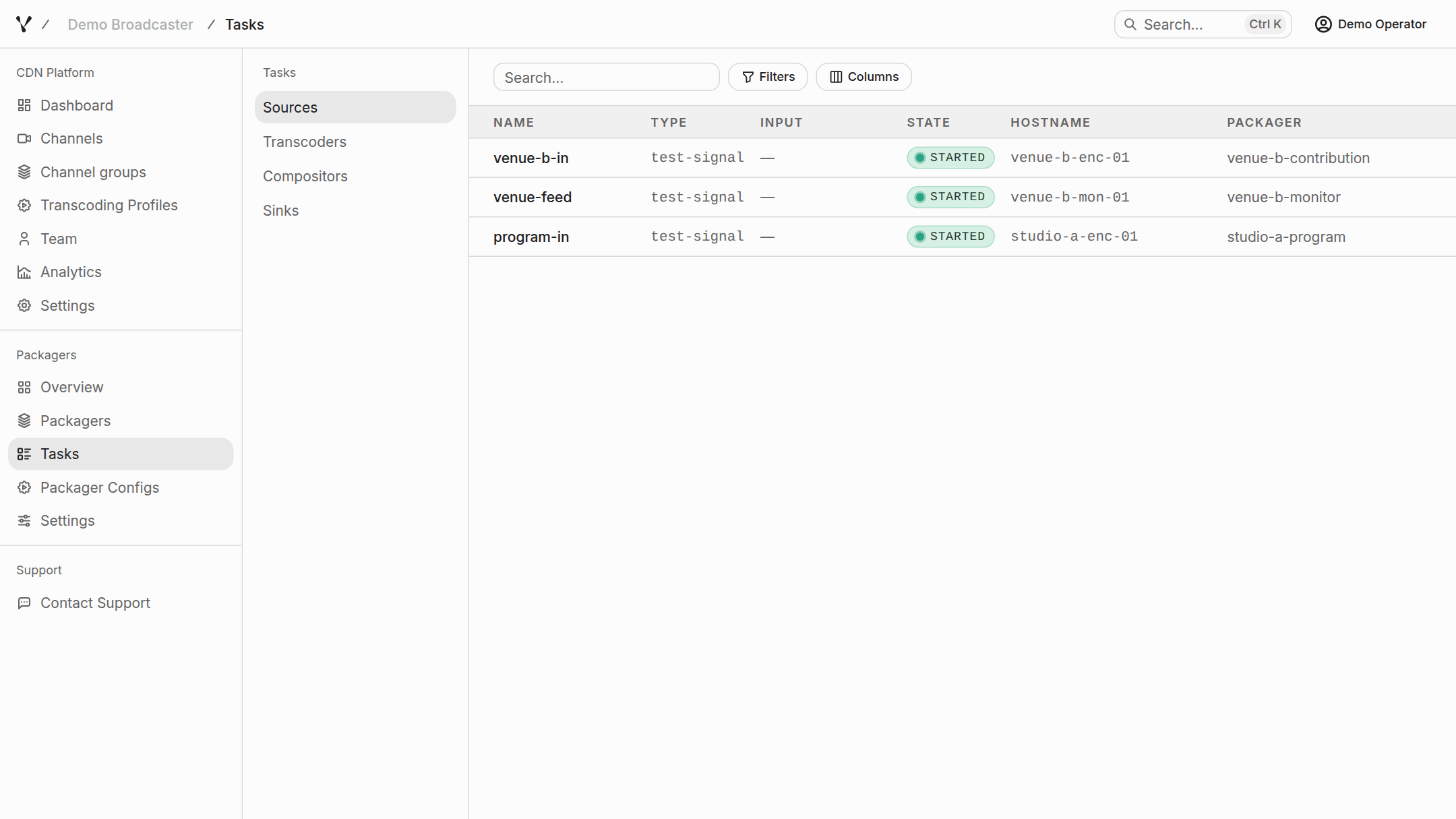
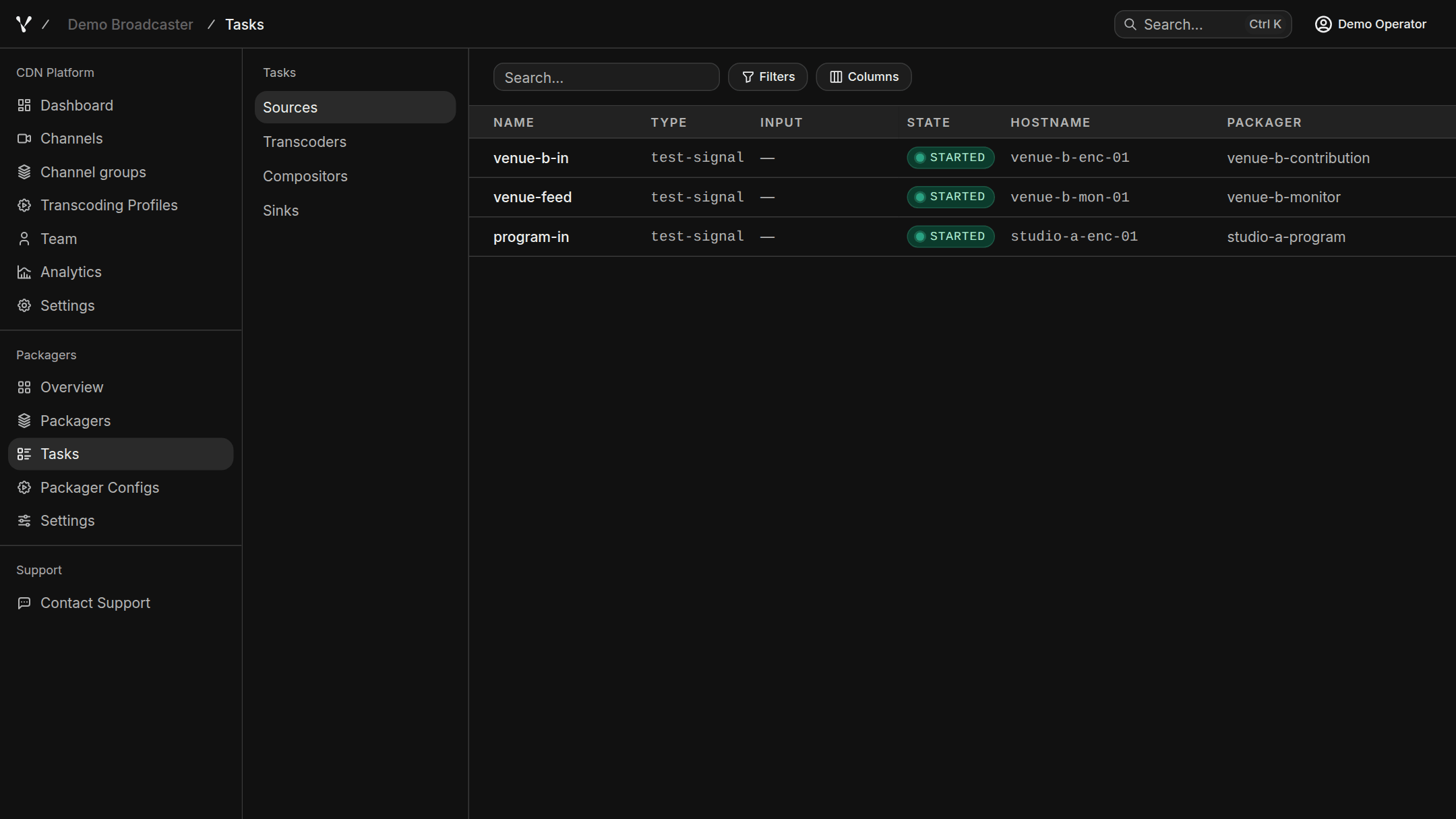
Tasks lists every source, transcoder, compositor and sink across all Packagers, one tab per kind, with its type, state, hostname and Packager. Use it to find, for example, every SRT input in a venue, or every sink that is not started. Filter by name, hostname, state or type.
Metrics and alerting
The Portal shows current state. For history, graphs and alerts, scrape each Packager's Prometheus metrics. See Monitor Packager.