Connect a Packager
A Packager connects to Vindral's control plane with a token. The token decides what happens next:
- A Packager token, created when you add the Packager in the Portal, makes it managed. It receives its configuration and updates from the Portal.
- A connect key makes it unmanaged. It runs its own local configuration file and reports its state.
Both need a Linux host with Docker and the Packager image. See Install Packager. The Portal shows the image Vindral set up for your organization under Settings › Packager image in the Packagers group of the sidebar.
Before you start: a deployment adapter
When you add a managed Packager, the Portal shows a docker run command to copy. The default command runs the container in the foreground, without a restart policy and without host networking. Set up a deployment adapter once so the command is ready for production:
-
Open Settings in the Packagers group of the sidebar, then Deployment adapters, and select Create adapter.
-
Enter a name, for example the group of servers it is for.
-
Set Docker run template to:
bashdocker run -d --name {{packager-name}} --restart always --network host \
{{image}} start managed \
--url {{url}} \
--token {{token}}The Portal fills in
{{packager-name}},{{image}},{{url}}and{{token}}when you add a Packager. Add any other options your host needs, such as GPU or DeckLink device access from Run Packager in Docker. -
Select Create.
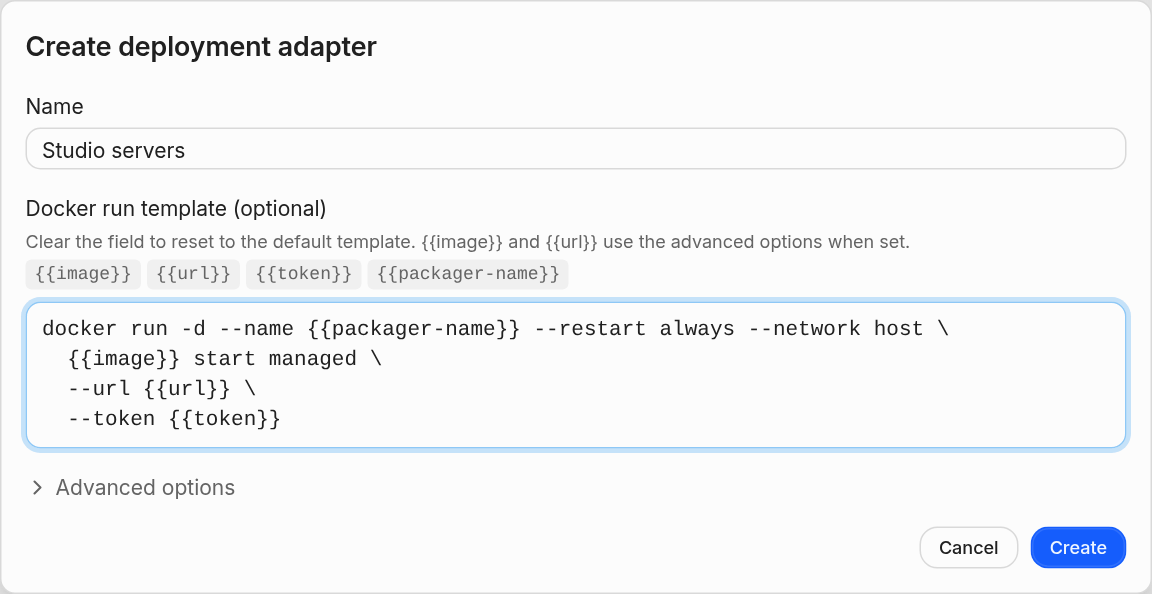
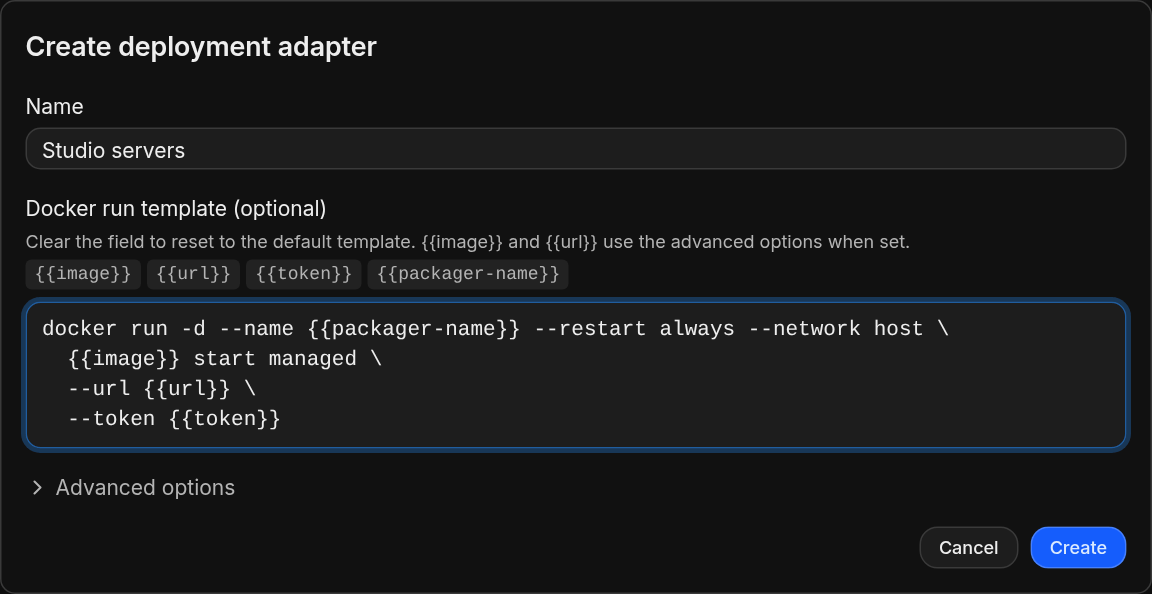
Under Advanced options, an adapter can also set its own image or control plane URL. Leave them empty to use the defaults. Clear the template field to go back to the default command.
Add a managed Packager
You need a Packager config first. Until there is one, the Packagers page asks you to create it and Add packager stays disabled.
-
Open Packagers and select Add packager. From a config's page, Add packager in its Packagers panel does the same with the config already chosen.
-
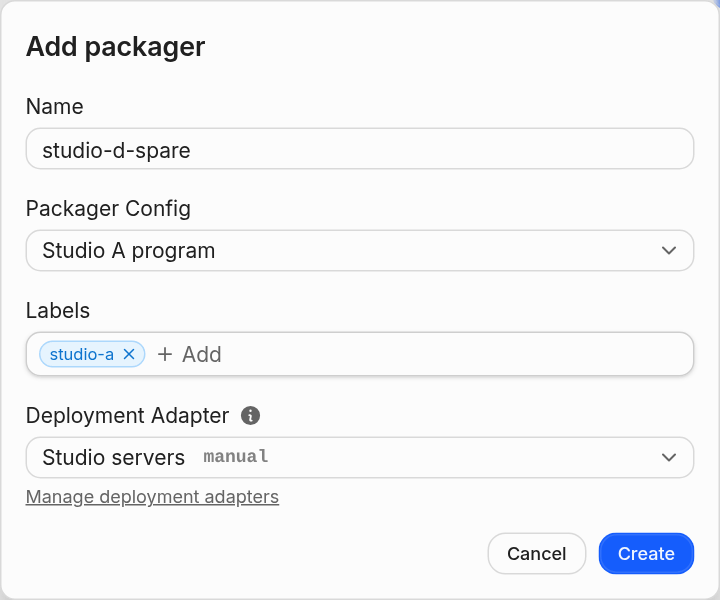
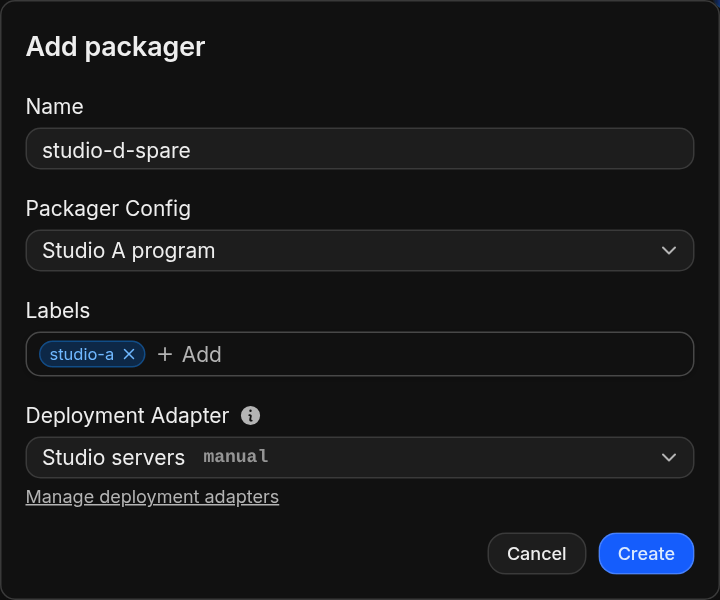
Enter a name, choose the Packager Config, add labels if you use them, and choose the Deployment Adapter you set up. None gives the default command.
-
Select Create. The dialog shows the
docker runcommand with the image, the control plane URL and the token filled in. Copy it, or open the Token tab to copy only the token. The token is shown once, so copy it before you select Done.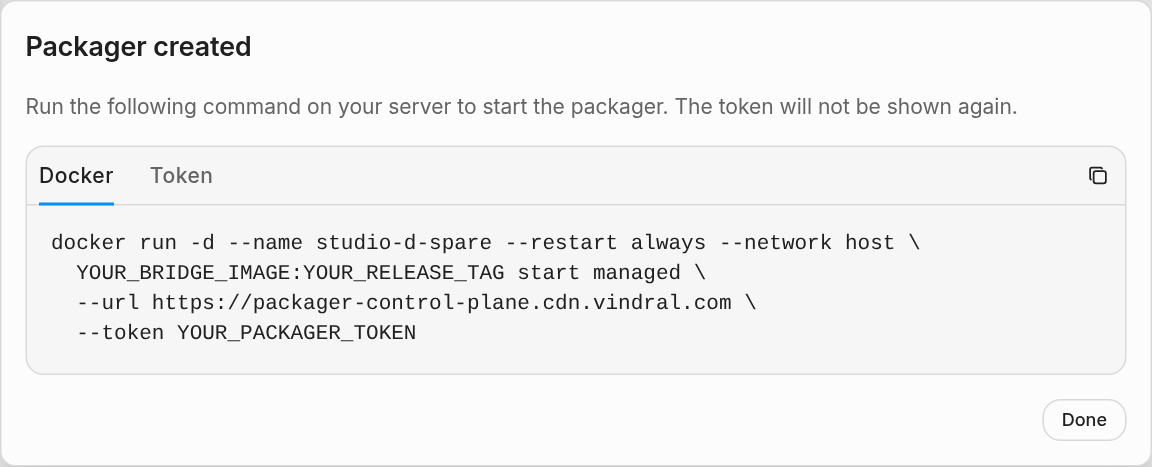
-
Run the command on the host. The Packager registers, receives the configuration and starts its tasks. In the Packagers list it changes from Pending to Up to date.
A token can be used by one running Packager at a time. To run the same configuration on another host, add another Packager with the same config. If you lose a token, delete the Packager and add it again.
Run the Packager yourself
To start the Packager another way, for example from a systemd unit or your own orchestration, take the token from the Token tab and the image and control plane URL from the Docker tab:
docker run -d --name studio-a-program --restart always --network host \
  "YOUR_BRIDGE_IMAGE:YOUR_RELEASE_TAG" start managed \
  --url https://packager-control-plane.cdn.vindral.com \
  --token "YOUR_PACKAGER_TOKEN" \
  --hostname studio-a-enc-01
The same settings can come from environment variables: PACKAGER_CONTROL_PLANE_URL, PACKAGER_CONTROL_PLANE_TOKEN and PACKAGER_HOSTNAME. --hostname is what the Portal shows in the Hostname column. It defaults to the machine's name, which inside a container without --network host is the container ID, so set it unless you use host networking.
start managed ignores the sources, transcoders, sinks and compositors in a local file. Pass -c with a file only for settings such as logging and the API. See Managed operation for the details.
Register an unmanaged Packager with a connect key
Use this when the pipeline lives in a local configuration file and you want to see the Packager in the Portal. A connect key belongs to your organization and can register any number of Packagers.
-
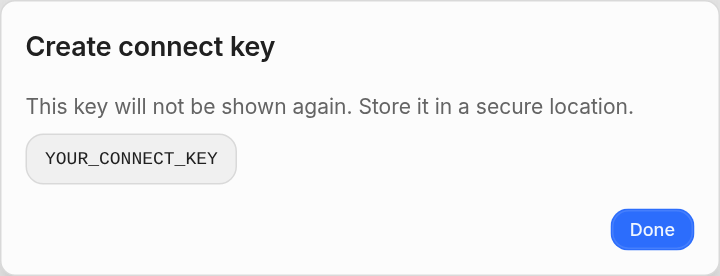
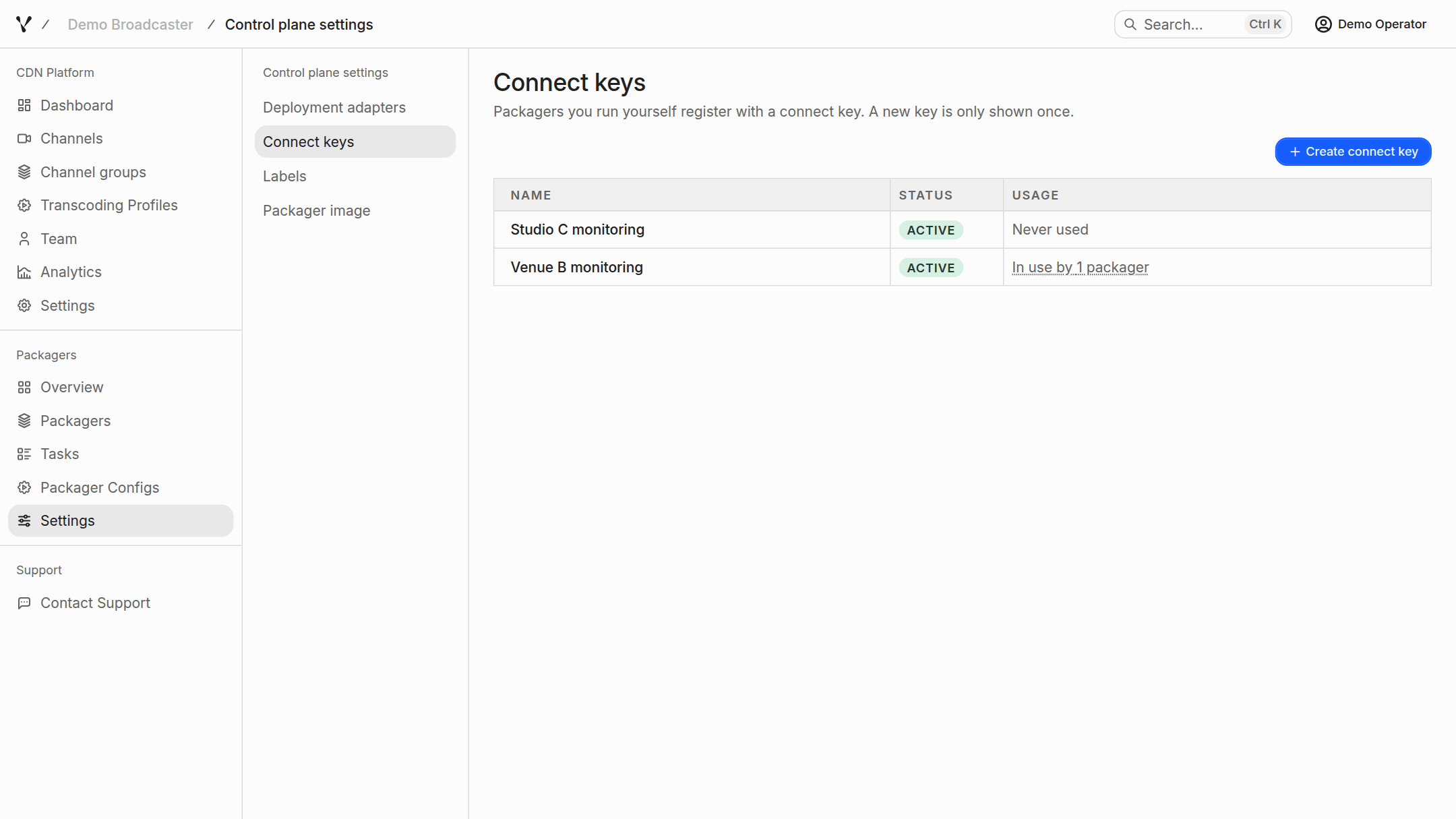
Open Settings › Connect keys and select Create connect key. Give the key a name and select Create key.
-
Copy the key. It is shown once; the Portal stores only a hash of it.
-
Add a
[control_plane]block to the Packager's configuration file. The token is the key, a dot, and a name for this Packager:toml[control_plane]
url = "https://packager-control-plane.cdn.vindral.com"
token = "YOUR_CONNECT_KEY.venue-b-monitor"
hostname = "venue-b-mon-01"The name after the dot is what the Packagers list shows. Use 1 to 100 characters from A to Z, a to z, 0 to 9,
_and-, and do not reuse the name of a managed Packager. -
Start the Packager as usual with
packager start. It registers, sends heartbeats and reports the state of its tasks. The Packagers list shows it as Unmanaged.
Give each Packager its own name after the dot, since a token can be used by one running Packager at a time.
Do not use a connect key with start managed. start managed drops the local tasks and waits for a configuration, and a connect key never gets one, so the Packager runs with no tasks.
Disable, rotate or delete a key
Settings › Connect keys lists each key with its status and usage: Never used, when it was last used, or how many Packagers use it now. Select a key to rename it, disable or enable it, or delete it. Disabling or deleting a key disconnects the Packagers that use it, and only active keys can register Packagers.
A Packager reads its token at startup and reuses it every time it reconnects. To rotate a key:
- Create a new key.
- Put the new token in each Packager's configuration file and restart the Packager.
- Check that every Packager is online again and that the old key shows no Packagers in use.
- Disable or delete the old key.
Check the connection
- In the Portal: the Packager shows a green status light within a few seconds of starting, with its hostname and version.
- In the Packager log: look for
Starting in managed modeorStarting with control plane integration, followed byRegistered control plane session.
If the Packager does not appear, check that the host can reach packager-control-plane.cdn.vindral.com on port 443 and that the token is complete. When registration fails, the log shows Control plane session failed, scheduling reconnect and Packager keeps retrying. Troubleshooting explains the messages.