Hyperlocal
The hyperlocal edge is an add on service on top of your Vindral Live account and comes with an additional cost. You can add one or more hyperlocal edges to your account and they can be spread across multiple local networks globally.
Hyperlocal Edge is a solution designed to optimize network performance during events or similar situations. It provides edge egress on a local network for your channels, thereby helping to avoid saturating the public network. This ensures smooth streaming and reduces latency, enhancing the user experience.
To set up a Hyperlocal Edge, you need to contact us so we can provide you with the necessary software. Once you have the software, you can install it on the server in your local network and configure it to work with your Vindral account.
Getting Started
- Contact Vindral Support: Reach out to our support team, via "Contact support" in Portal or contact form, to request access. Based on info about your local network environment, our team will prepare and provide you with the necessary software and instructions.
- Install Software: Follow the provided instructions to install the Hyperlocal Edge software on your local server(s). Everything needed for installation will be included. Runs in Docker with modest hardware requirements.
- Configure: The hyperlocal edge(s) are configured in the Portal for you organization, see Configure below.
- Verify: Once configured, verify the setup to ensure it is functioning correctly and optimizing your network performance as expected.
The Vindral support team is available to assist you during this process.
Configure
You can see your hyperlocal edge setup in the Vindral Portal. Simply navigate to your organization settings and find the Hyperlocal tab.
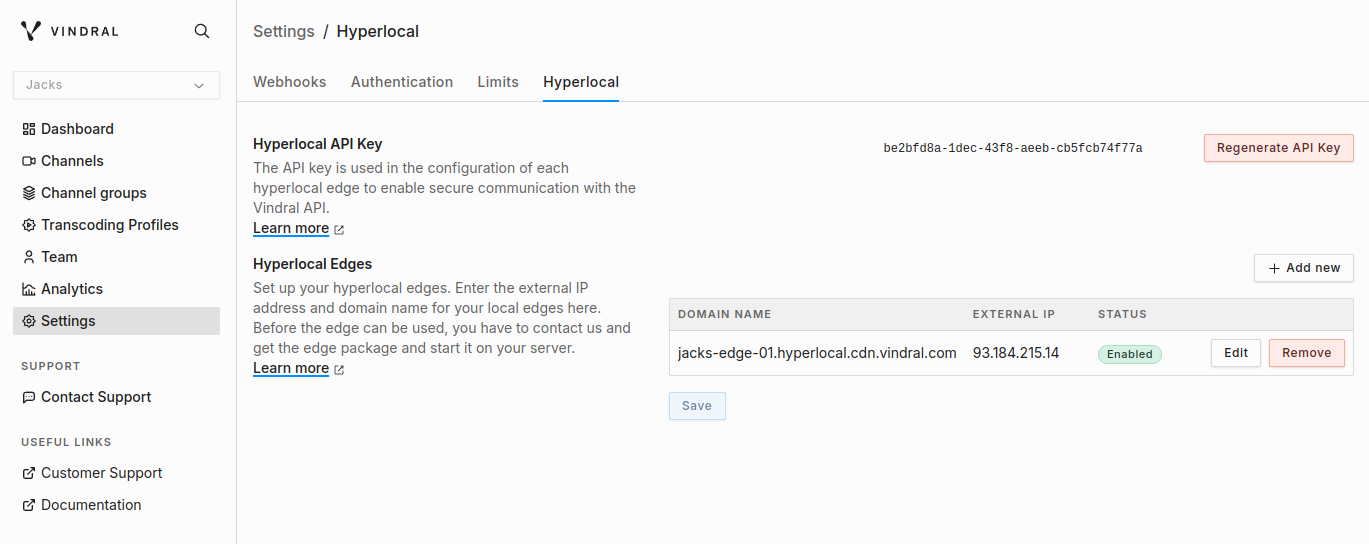
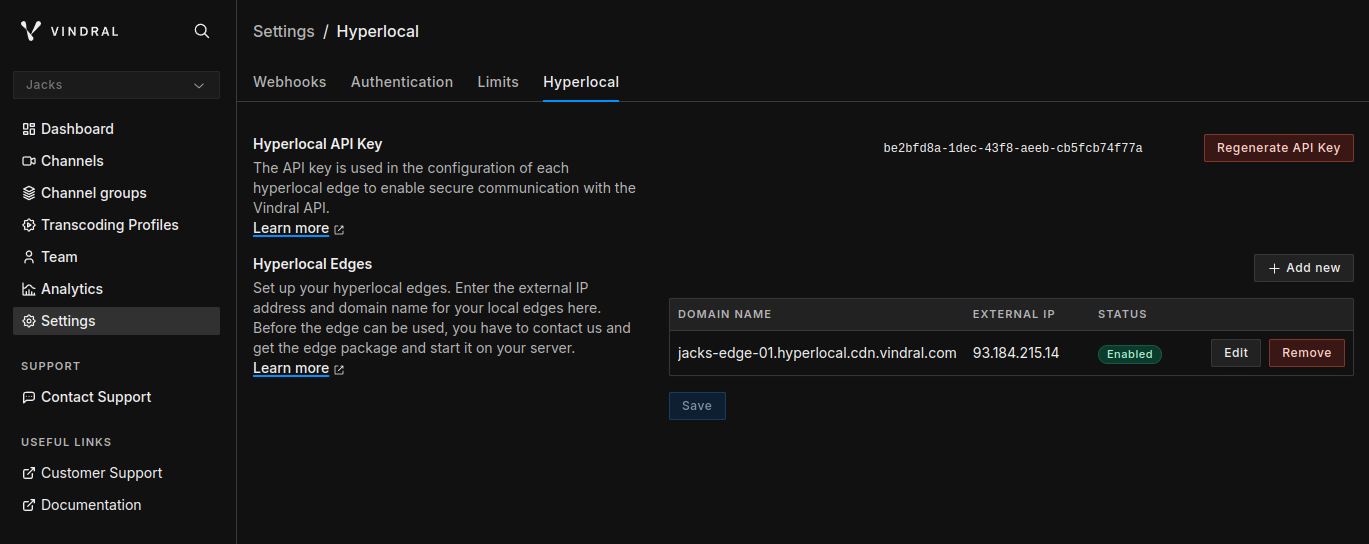
Hyperlocal Edge
Input your Domain Name and external IP address for your Hyperlocal Edges in the provided fields.
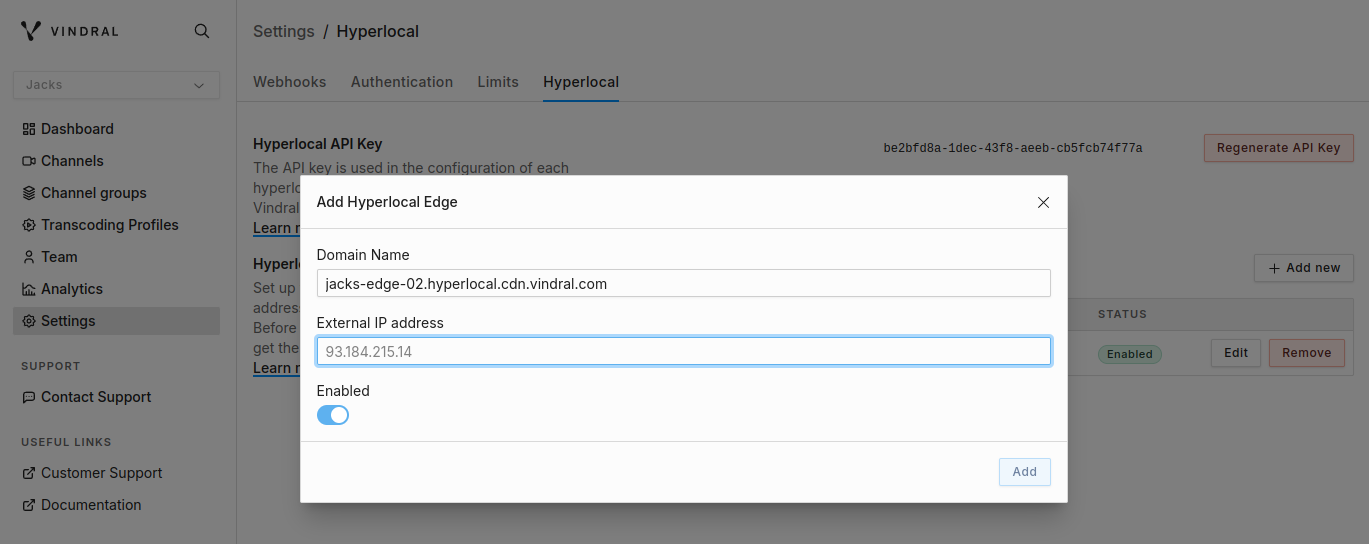
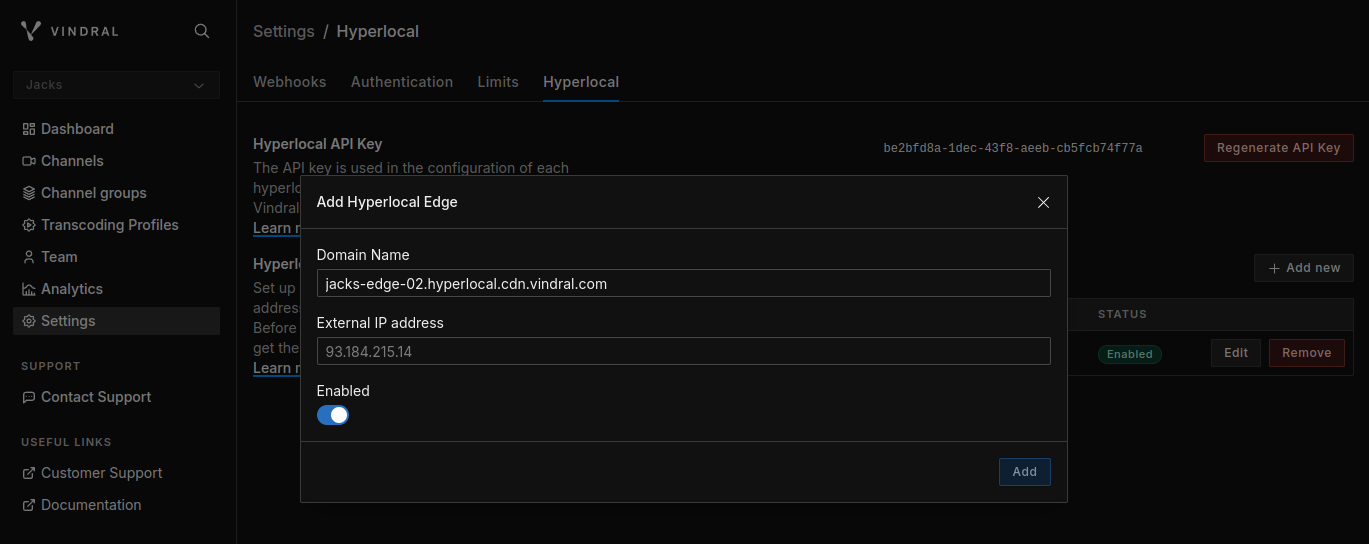
If desired, you can also utilize an IP CIDR range, as illustrated below:


Hyperlocal Api Key
The API key is used in the configuration of each hyperlocal edge to enable secure communication with the Vindral API.
Verify Hyperlocal Edge
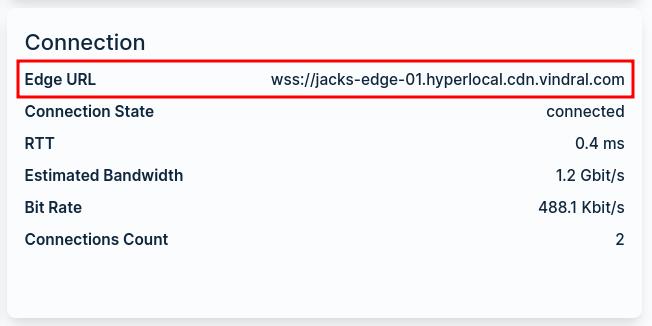
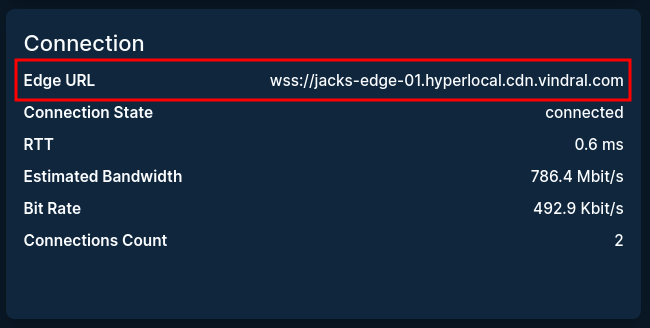
To verify that your Hyperlocal Edge is working correctly, you can start a live stream on the organization that has the Hyperlocal Edge configured. You can then open the Vindral QoS player and check the Edge URL field in the Connection section. If the Hyperlocal Edge is working correctly, the URL should match the one configured in the Vindral Portal.
Browser Considerations
Chrome Local Network Access Restrictions
Starting with Chrome 142, Chrome prompts users before a web page can connect to devices on the local network. Chrome 147 extends this to WebSocket and WebTransport connections. When a Vindral player embedded in your web app connects to a Hyperlocal Edge on the local network, end users may see a permission prompt before playback can start.
For end users, clicking Allow on the prompt is sufficient and is remembered per site.
For managed deployments where the prompt should be suppressed, IT administrators can pre-grant the permission using Chrome's LocalNetworkAccessAllowedForUrls enterprise policy. The policy takes the origin of the web page hosting the player (for example https://app.example.com), not the local IP of the Hyperlocal Edge.
We also recommend including https://*.vindral.com in the allowlist so that Vindral-hosted troubleshooting tools (such as the QoS player) can reach your Hyperlocal Edge without triggering the prompt.
Other Chromium-based browsers (Microsoft Edge, Brave, Opera, Arc, and others) inherit the same restriction and the same policy. Firefox and Safari do not currently enforce Local Network Access checks.